An asset’s details page brings its inspections, maintenance, and usage history together. Use this information to track its condition, spot recurring problems, and plan future work.
What you can see may depend on your permissions and the asset’s configuration.
Open the Asset
- Go to Asset Management.
- Search by asset name, ID, or tag.
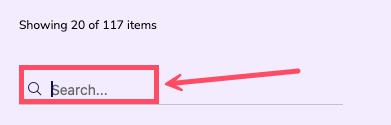
- Select the asset to open it.
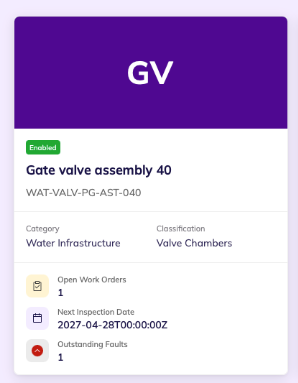
You can also find it under Asset Management > Hierarchy.
The asset page may include tabs for:
- Identification
- Financials & Status
- Inspections
- Work orders
- Attachments
- Hierarchy
Review Inspections
Open Inspections to see the asset’s inspection records. The list may include the inspection type, date, inspector, status, result, faults, and next inspection date.

Select an inspection to review its:
- Responses
- Notes
- Ratings
- Faults
- Photos and attachments
Compare recent results with earlier inspections. Look for repeated faults, declining ratings, and findings that still need follow-up work. Use filters or date controls to narrow a long history.
Review Work Orders
Click the Work Orders tab to see maintenance and repair activity.
A work order may show:
- Work order number and type
- Description and priority
- Assigned team or worker
- Created, scheduled, and completed dates
- Current status
- Labor, material, and other costs
Open a work order for its full notes, assignments, attachments, and completion details.
Use this history to see what work remains open, how often the asset needs repairs, and whether the same problem keeps returning.
Find Open Maintenance
Asset cards and list view may display an Open Work Orders count.
To review active maintenance:
- Go to Asset Management.
- Click the More filter, then click the checkbox beside Has open work orders to filter the list.
- Open an asset.
- Select Work orders.
- Review its open and in-progress records.
A count of zero means there is no open work. The asset may still have completed maintenance history.
Review Costs
Asset and maintenance costs appear in different places.
Asset Costs
Open Financials & Status to review values such as:
- Purchase and replacement cost
- Current value
- Ownership
- Remaining service life
- Disposal information
These values describe the asset itself.
Maintenance Costs
Open a completed work order to review repair costs, such as:
- Labor
- Materials
- Equipment
- Contractor services
- Other charges
Review several work orders to understand maintenance costs over time. Totals depend on users entering costs consistently.
Follow the Full History
The records work together:
- Inspections show the asset’s condition.
- Findings identify problems.
- Work orders track repairs.
- Costs show the financial impact.
- Usage shows how much the asset has operated.
- Attachments provide supporting evidence.
For example, an inspection may identify a fault, a work order records the repair and cost, and a later inspection confirms the result.
Troubleshooting
- Missing inspection: Check the asset, date range, filters, and your permissions.
- Missing work order: Confirm that it is linked to the asset, not just mentioned in the description.
- Missing costs: Open the work order and check that labor, materials, and other charges were entered.
- Missing usage: Confirm that usage tracking is enabled and readings have been recorded.
Was this article helpful?
That’s Great!
Thank you for your feedback
Sorry! We couldn't be helpful
Thank you for your feedback
Feedback sent
We appreciate your effort and will try to fix the article