Parent-child relationships show where assets belong and how components fit together. Together, these relationships create your asset hierarchy.
Understand the Relationship
A parent is the location or asset directly above another item. A child is directly below its parent.
For example:
North Utilities Location
└── Pump Station Alpha Location
└── Pump Alpha 01 Asset
└── Motor 01 Asset
Here, the pump station contains the pump, and the pump contains the motor. North Utilities is the root because it has no parent.
Each asset has one direct parent, while a parent can have several children.
Choose the Right Parent
Choose the location or asset that most directly contains the item:
- Use a location when the asset belongs to a site or facility.
- Use another asset when the item is a component of larger equipment.
For example, a pump station can contain a pump, and that pump can contain a motor.
Avoid placing every asset under the highest-level location. Direct relationships make your hierarchy easier to understand.
Assign a Parent to a New Asset
- Go to Asset Management.
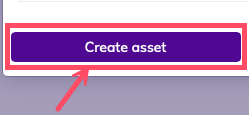
- Select Create asset.
- Enter the asset’s details.
- In Parent, search or browse for the appropriate location or asset.
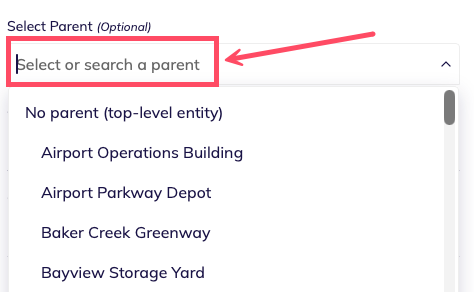
- Select the parent.
- Complete the remaining fields.
- Select Create asset.
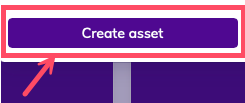
The asset appears beneath its parent. If you do not select a parent, it appears at the root level.
Create a Child Asset
You can create a child directly from its parent. For more information, see our article on Creating and Managing Assets [link].
Build Your Hierarchy
Build from general locations to specific equipment:
Operations Campus Location
└── Water Treatment Building Location
├── Primary Pump Asset
│ ├── Electric Motor Asset
│ └── Control Panel Asset
└── Backup Pump Asset
Use only the levels needed to show useful physical or operational relationships.
Change the parent of an existing asset or location
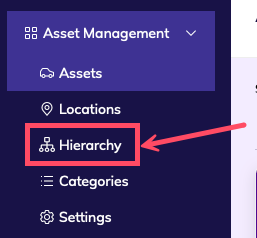
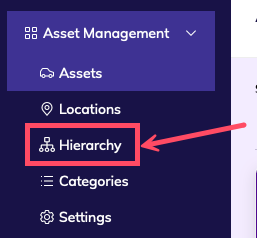
- Navigate to Asset Management > Hierarchy.
- Open the asset or location you want to move.
- Select Edit.
- In the Parent field, select the new parent.
- Save your changes.
- Return to the Hierarchy tab to confirm the asset or location appears under its new parent.
You can reassign an existing asset or location to a new parent, but you cannot add an existing item as a child from the parent item. You can only create a new child from a parent.
Find and Review Relationships
- Go to Asset Management > Hierarchy.
- Expand an item to see its direct children.
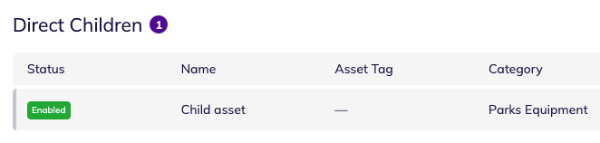
- Continue expanding to view additional levels.
- Select an item’s name to open it.
You can also search by name or system ID. The displayed path helps you tell similarly named assets apart.
Fix Common Problems
- Wrong parent: Edit the asset and select the correct parent.
- Unexpected root asset: Assign it to the appropriate location or asset.
- Component at the root: Select the equipment it belongs to as its parent.
- Possible duplicate: Compare IDs and tags before moving or archiving anything.
- Too many levels: Remove levels that do not represent useful relationships.
Was this article helpful?
That’s Great!
Thank you for your feedback
Sorry! We couldn't be helpful
Thank you for your feedback
Feedback sent
We appreciate your effort and will try to fix the article