Categories and classifications help you organize assets consistently. They also make searching, filtering, reporting, and asset-specific configuration easier.
Your available options may depend on your permissions.
Understand the Difference
A category is a broad group of related assets. A classification is a specific asset type within that category.
Category | Classifications |
Mechanical | Pump, Motor, Compressor |
Electrical | Generator, Transformer, Control Panel |
Fleet | Truck, Trailer, Heavy Equipment |
Facilities | Building Equipment, Furniture, Safety Equipment |
For example, use Mechanical > Pump to categorize a pump. Store its manufacturer, model, and serial number on the asset itself.
Plan Your Structure
Before adding anything:
- Review your organization’s existing terminology.
- Choose broad categories that will stay useful over time.
- Create classifications for meaningful asset types.
- Check for existing options to avoid duplicates.
- Use consistent naming.
Do not create classifications for manufacturers, models, locations, or statuses. Those details belong elsewhere on the asset record.
Create a Category
- Open Asset Management.
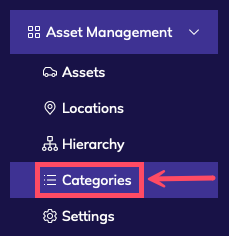
- Click Categories.
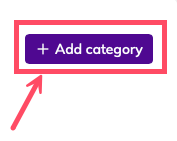
- Click Add category.
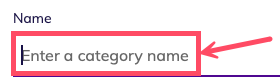
- Enter a clear, unique name for the new category.
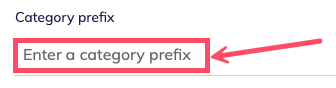
- Add the category Prefix.
- Enter the category Type.
- Save the category by clicking Add Category.
Keep the name broad enough to cover several related classifications.
Create a Classification
- Open the applicable category.
- On the category detail page, click Add Classifications.
- Enter a clear, unique name for the classification.
- Enter a Classification Prefix.
- Click Add Classification.
The classification is automatically assigned to the category where it was created. When creating or editing an asset, the available classifications depend on the selected category.
Configure Classification Settings
Classification settings help you standardize assets of the same type. They may control available fields, defaults, requirements, or other behavior.
- Open the classification.
- Click Edit.
- Configure settings that apply to every asset in that classification.
- Save your changes.
- Test the classification on an asset.
For example, the Pump classification can define pump-specific information, while each pump stores its own model, serial number, and installation date.
Keep details that vary between assets on their individual records.
Categorize an Asset
- Go to Asset Management.
- Under Assets, create a new asset or open an existing one.
- Find the Category & Classification Attributes section.
- Click the Edit button.
- Select a Classification from that category.
- Complete any additional fields.
- Save the asset.
If you cannot find a classification, check that you selected the correct category first.
Changing an existing asset’s category may clear its previous classification. Review any classification-specific fields before saving.
Find Categorized Assets
- Open Asset Management.
- Select the Category filter.
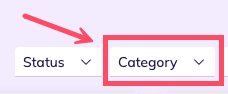
- Choose a category.
- Select the Class filter if you want to narrow the results further.
- Review the matching assets.
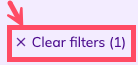
Select Clear filters to return to the full list.
Categories and classifications also appear in the hierarchy, so you can identify an item’s type without opening it.
Update or Retire Configuration
Before changing a category or classification:
- Check which assets use it.
- Review related filters, reports, and settings.
- Make sure the new name keeps the same meaning.
- Tell users about significant changes.
To retire an unused classification, update affected assets first and preserve their reporting history. Disable or archive the classification instead of deleting configuration referenced by existing records.
Was this article helpful?
That’s Great!
Thank you for your feedback
Sorry! We couldn't be helpful
Thank you for your feedback
Feedback sent
We appreciate your effort and will try to fix the article