The asset hierarchy shows how your locations and assets fit together. Use it to find equipment, see where it is installed, and understand how components relate to larger assets.
Assets and Locations
A location is a physical or operational place, such as a campus, facility, pump station, room, or service area. A location can contain other locations and assets.
An asset is something you manage, maintain, or inspect, such as a pump, vehicle, motor, or piece of facility equipment. An asset can belong to a location or another asset.
Parent-Child Relationships
The hierarchy uses parent-child relationships:
- A parent is directly above another item.
- A child is directly below its parent.
- A root item has no parent and appears at the top level.
- A child can also be a parent, creating multiple levels.
For example:
North Utilities Location
└── Pump Station Alpha Location
└── Pump Alpha 01 Asset
└── Motor 01 Asset
Here, the pump belongs to the pump station, and the motor is a component of the pump.
An item’s parent shows where it belongs. Its category, class, and status provide separate details about what it is and its current state.
View the Hierarchy
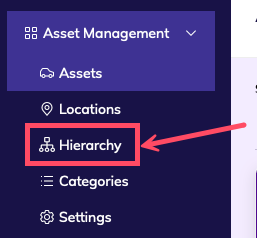
- Go to Asset Management.
- Click Hierarchy.
- Review the top-level assets and locations.
- Use the expand button to display an item’s direct children.

- Continue expanding branches to see additional levels (if applicable).
- Click an asset or location name to open its details.
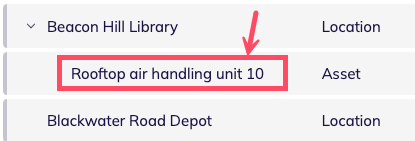
The hierarchy displays each item’s:
- Name
- Type
- Category
- Class
- Status
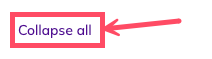
Select Collapse All to close every expanded branch and return to the top-level view.
Search the Hierarchy
Search by an item’s name or system ID.
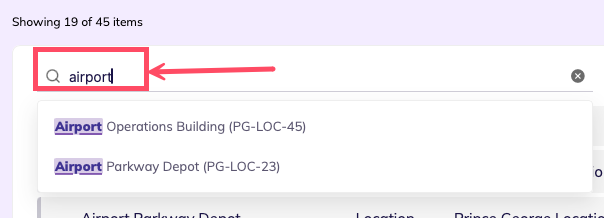
As you type, suggestions display matching items and their hierarchy paths. These paths help you distinguish items with similar names.
Select a suggestion to open its branch, or press Enter to display all matching items. Clear the search filter to return to the standard hierarchy.
Add and Organize Items
When creating an asset or location, select its parent to place it in the correct branch.
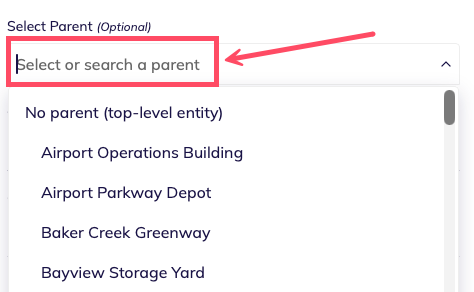
You can also create a child asset from an existing asset’s Hierarchy tab. After creation, it appears under Direct Children.
When choosing a parent, ask:
- Where is this item physically or operationally located?
- Is it a component of another asset?
- Is this its direct parent?
- Will this structure make the item easy to find?
Keep the hierarchy simple. Use only the levels needed to show meaningful relationships.
Was this article helpful?
That’s Great!
Thank you for your feedback
Sorry! We couldn't be helpful
Thank you for your feedback
Feedback sent
We appreciate your effort and will try to fix the article