Use Asset Management to add, update, find, and archive the equipment your organization maintains.
Your available actions may depend on your permissions.
Create an Asset
To create an asset, proceed as follows:
- Go to Asset Management.
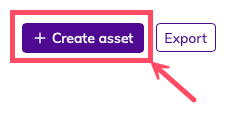
- Click Create asset.
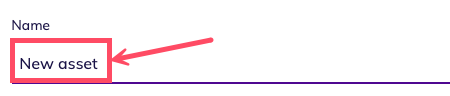
- Enter a clear asset name.
- Enter or generate an asset tag (optional).
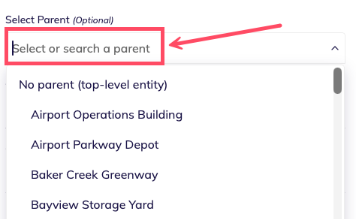
- Select a parent location or asset, if applicable.
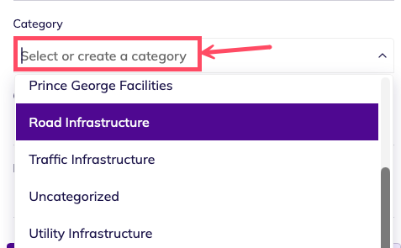
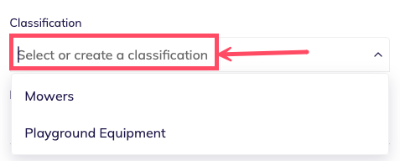
- Select a category and classification.
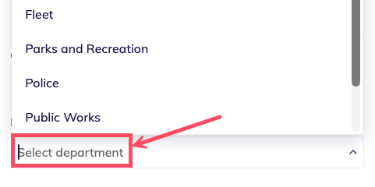
- Select the responsible department.
- Add any other available details.
- Click Create asset.
The new asset appears in Asset Management. If you selected a parent, it also appears under that parent in the hierarchy.
Create a Child Asset
To add a component to an existing asset:
- Open the parent asset.
- Click the Hierarchy tab.
- Click Create Child.
- Enter the child asset’s details.
- Click Create asset.
The new asset appears in the parent’s Direct Children section.
Edit an Asset
- Find and open the asset.
- Open the relevant details section.
- Click Edit.
- Update the information.
- Save your changes.
Asset information may be organized into these tabs:
- Identification
- Financials & Status
- Inspections
- Work orders
- Attachments
- Hierarchy
You may be able to update the asset’s name, tag, category, classification, department, status, or parent.
Changing the parent moves the asset to another branch of the hierarchy. Double-check the new parent before saving.
Was this article helpful?
That’s Great!
Thank you for your feedback
Sorry! We couldn't be helpful
Thank you for your feedback
Feedback sent
We appreciate your effort and will try to fix the article