Public Works Asset Management uses a define once, use everywhere approach. You create one inspection and assign it wherever it is needed, instead of maintaining duplicate forms.
How It Works
The inspection definition contains the shared setup:
- Name and description
- Inspection category
- Questions and response types
- Response options
- Required fields
- Fault and completion rules
Assignments control which assets receive the inspection. You can assign it to:
- One asset
- An asset category
- An asset classification
Each assigned asset uses the same questions while keeping its own inspection history.
Define the Inspection Once
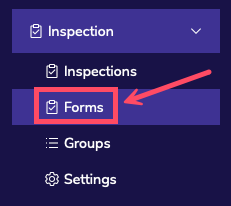
- In the left navigation bar, open Inspections.
- Navigate to Forms.
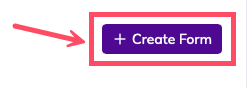
- Click the Create Form button.
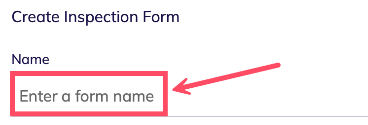
- Enter a clear name.
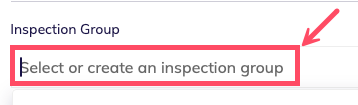
- Choose an inspection group.
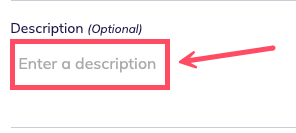
- Enter a description (optional).
- Click Create.
- Once you have created the form, click the Questions tab.
- Click Create Section.
- Click Options > Add Question.
- Add questions and response types.
- Click Save.
Include only requirements that apply to every asset using the inspection.
Choose the Assignment Level
Individual Asset
Use a direct assignment for something unique, such as:
- A manufacturer-required check
- A post-repair inspection
- A site-specific requirement
Asset Category
Use a category assignment for broad requirements shared by related assets.
For example, assign a general condition inspection to the Mechanical category.
Asset Classification
Use a classification assignment for one asset type.
Examples include:
- Pump Performance Inspection for Pumps
- Electrical Inspection for Motors
- Pre-Trip Inspection for Vehicles
Classification assignments usually give you the best balance of reuse and specificity.
Combine Shared and Specialized Inspections
An asset can receive inspections from several levels.
For example, a pump might receive:
- A general condition inspection from its category
- A pump inspection from its classification
- A post-repair inspection assigned directly to it
Each inspection keeps its own questions and history.
Use Different Assignment Details
Assets can share an inspection definition while using different assignment details, such as responsible teams or due dates.
This lets two pumps use the same inspection form without requiring identical assignment settings.
Update the Shared Inspection
- Navigate to Forms.
- Choose your desired inspection.
- Click Edit.
- Update the questions or requirements.
- Click Save.
Remember that shared changes can affect every assigned asset. If a change applies to only some assets, create a specialized inspection instead.
Preserve Each Asset’s History
Sharing a definition does not combine inspection records. Each asset keeps its own completed history, while reports can compare results across assets.
Update categories and assignments instead of deleting and recreating an inspection. This helps preserve historical connections.
Avoid Duplicate Inspections
Before creating a new inspection:
- Search for an existing form with the same purpose.
- Compare its questions and requirements.
- Review its current assignments.
- Reuse it when the requirements match.
Duplicate forms can lead to inconsistent questions, repeated assignments, fragmented reporting, and extra maintenance.
A different asset type does not automatically need a separate inspection.
Move Beyond Module-Specific Copies
Instead of creating separate forms such as:
Facilities - Equipment Safety Inspection
Parks - Equipment Safety Inspection
Utilities - Equipment Safety Inspection
Create one shared form:
Equipment Safety Inspection
Then assign it to the appropriate assets, categories, or classifications across Public Works Asset Management.
Before retiring older copies, review their assignments, permissions, and completed history.
Troubleshooting
- A change should not affect every asset: Create a specialized inspection for the smaller group.
- Similar inspections report separately: Review whether they are duplicates that can be consolidated.
Was this article helpful?
That’s Great!
Thank you for your feedback
Sorry! We couldn't be helpful
Thank you for your feedback
Feedback sent
We appreciate your effort and will try to fix the article