Create an inspection to define what your team checks, how they record results, and what they must complete before submitting.
Your available options may depend on your permissions.
Plan the Inspection
Before you start, decide:
- Which assets need the inspection
- What the inspection should accomplish
- What information inspectors must collect
- Which responses are required
- Which answers should create a fault
- Whether you need notes, photos, or signatures
Keep each inspection focused on one clear purpose.
Create the Inspection
- Open the Inspection section.
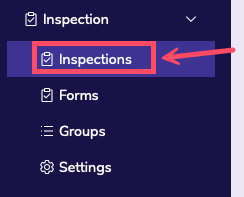
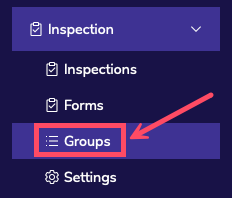
- Select Groups to create or choose a group that will organize related inspection forms, such as Playground Inspections.
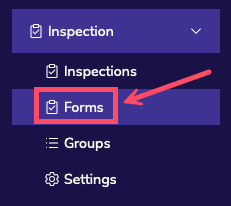
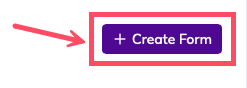
- Click Forms, then click Create Form.
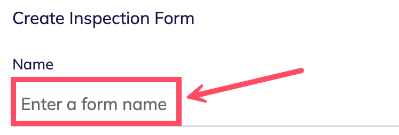
- Enter a clear name for the form.
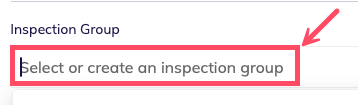
- Select or create an Inspection Group.
- Enter a Description (optional).
- Click Create.
Use the main Inspections page to view completed and upcoming inspections.
Choose the Assignment Scope
Associate inspection forms based on how they should be used:
- Asset category or classification: Open the inspection form and associate it with the appropriate category or classification. The form will appear as a suggested inspection for assets or locations in that category or classification. It is not added automatically.
- Individual asset or location: Navigate to the specific asset or location, open its Inspections tab, and manually associate the inspection form.
For example, associate a general equipment inspection with an equipment category and a pump-specific inspection with the Pump classification. Users can then add these suggested inspections to applicable assets or locations.
Add Questions
- Open your desired form and navigate to the Questions tab.
- Click Create Section.
- Click Options > Add Question.
- Enter a question Label.
- Choose a response type.
- Mark it as mandatory if desired.
- Save and place it in the correct order.
Good prompts include:
- Is the safety guard securely installed?
- Record the operating pressure in kPa.
- Photograph any visible leakage.
Avoid combining several unrelated checks in one question.
Choose a Response Type
Response type | Use it for |
Text or notes | Identifiers, comments, and observations |
Number | Pressure, temperature, voltage, distance, or hours |
Yes/No | Conditions that can be confirmed or rejected |
Single-select | One choice from a standard list |
Multi-select | Several applicable choices |
Date or time | Calibration, reading, or completion dates |
Checkbox | Simple acknowledgements |
Photo | Visual evidence |
Signature | Formal confirmation |
Condition or fault | Ratings and maintenance issues |
Heading or instructions | Sections and guidance |
Use structured response types instead of general text whenever possible. Include units with measurements.
Organize the Questions
Arrange questions in the order inspectors will complete the work. A simple structure is:
- Identification and safety
- Visual condition
- Operational checks
- Measurements
- Faults and corrective-action notes
- Photos
- Final comments
- Signature
Use headings to break up longer inspections.
Configure Response Options
For list questions:
- Use short, distinct labels.
- Arrange options logically.
- Identify responses that indicate a fault.
- Include Not applicable only when it is a valid answer.
Do not change an option’s meaning after completed inspections have used it.
Set Completion Requirements
You may be able to require:
- A response
- A note or explanation
- A photo
- A value within an expected range
- A signature
- Acknowledgement of a fault
Require only information that every inspector can provide. If a question may not apply, add Not applicable or leave it optional.
Configure Faults
For questions that can identify a problem:
- Choose which responses create a fault.
- Set a priority, if available.
- Require notes or photos when helpful.
- Confirm how follow-up work is created.
- Test both acceptable and fault responses.
Use consistent fault rules so similar conditions produce similar results.
Preview and Test
Before publishing:
- Preview the inspection as an inspector.
- Complete a test inspection.
- Check the question order.
- Test every response type.
- Confirm required questions block incomplete submission.
- Test fault and follow-up behavior.
- Check the inspection on the devices your team uses.
Fix unclear instructions or unnecessary requirements before assigning the inspection broadly.
Was this article helpful?
That’s Great!
Thank you for your feedback
Sorry! We couldn't be helpful
Thank you for your feedback
Feedback sent
We appreciate your effort and will try to fix the article