Inspection Groups organize forms by purpose so users can find and reuse them more easily.
Keep Inspection Groups separate from asset taxonomy:
- Inspection Groups organize inspection forms.
- Asset categories and classifications organize assets and locations.
- Form associations determine which forms are suggested for or directly available on an asset.
- Inspection intervals determine when an associated inspection is next due.
Choose Your Inspection Groups
Use a concise set of groups that reflects how your organization performs inspections.
Examples include:
- Operational Checks
- Preventive Maintenance
- Safety
- Regulatory Compliance
- Condition Assessments
- Post-Repair Verification
Avoid groups with overlapping purposes. Use a shared group across departments when appropriate, but create a department-specific group when its forms should be limited to that department.
Groups, Associations, and Scheduling
These settings serve different purposes:
Setting | Purpose |
Inspection Group | Organizes related inspection forms and supplies their default question type |
Department | Controls the group’s department visibility |
Category or classification association | Makes a form appear as a suggestion for matching assets |
Direct asset association | Adds the form to the asset’s Associated Inspections |
Inspection interval | Determines when the associated inspection is next due |
For example, Annual Pump Safety Inspection can belong to the Safety group and be associated with the Pump classification.
A category or classification association does not automatically add the form to every matching asset. It makes the form available under Suggested forms. An authorized user must explicitly associate it with an asset before the inspection can be started.
Create an Inspection Group
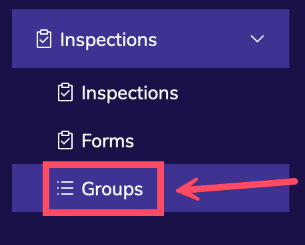
Open Inspections > Groups.
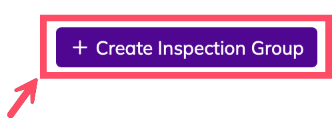
Select Create Inspection Group.
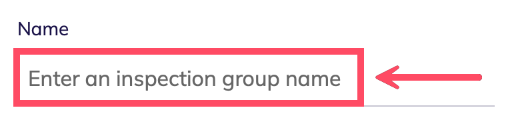
Enter a clear Name.
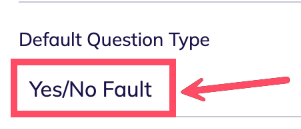
Select the Default Question Type.
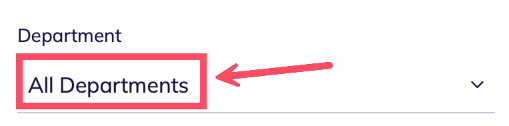
Select the applicable Department or All Departments.
Select Create Group.
A new group is Enabled and becomes available when creating an inspection form.
Choose a name that makes sense across asset types and, where appropriate, across departments.
Add a Form to a Group
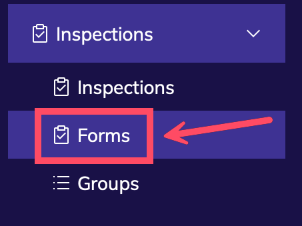
Open Inspections > Forms.
Select Create Form.
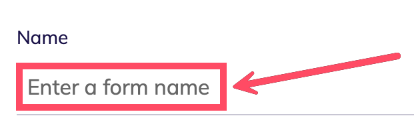
Enter the form Name.
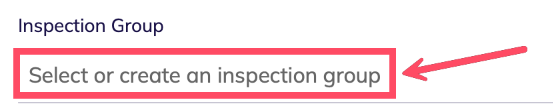
Select the appropriate Inspection Group.
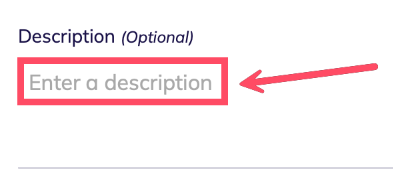
Enter an optional Description.
Select Create.

You can also create an Inspection Group from the form-creation dialog.
To move an existing form:
Open the form.
Select Details.

Select Edit.
Change the Inspection Group.
Click Save.
Review the Move Inspection Form confirmation. Then, click Move.

Moving a form changes how it is organized. Review its associations and department access after moving it.
Find Forms by Group
Open Inspections > Forms and use the available search and group filters to narrow the list.
For example:
Filter by the Preventive Maintenance group.
Search for pump.
Open the required form from the filtered results.
Clear the filters to return to the complete list.
Use clear form names as well as clear group names. Pump - Monthly Inspection is more useful than Monthly Check or Form 1.
Associate Forms with Categories and Classifications
To make a form available as a suggestion for matching assets:
Open the inspection form.
Select Associations.
Under Associated Categories, select Create Association.
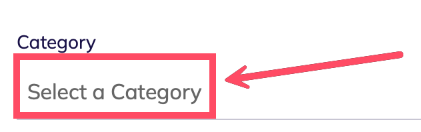
Select a Category.
Select a Classification when the association should apply only to that classification.
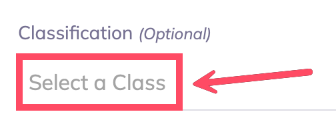
Leave Classification blank when the association should apply to all classifications in the category.
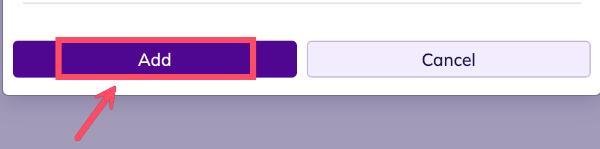
Select Add.
You can also manage these associations from a category or classification’s Inspection forms tab.
Category and classification associations create suggestions. They do not directly assign the form to matching assets.
Associate a Form with an Asset
To make a form available for inspection on a specific asset:
Open the asset.
Select Inspections.

Review Suggested forms for forms matching the asset’s category and classification.
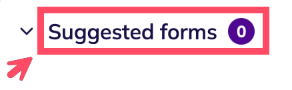
Select Associate for an appropriate suggestion.
To select from the complete eligible form library:
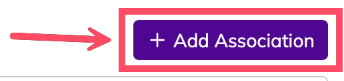
In Associated Inspections, select Add Association.
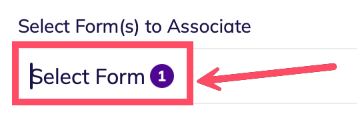
Select one or more forms in Associate Inspection Forms.
Select Add Form(s).

After association, the form appears under Associated Inspections and can be started by an authorized user.
Configure Inspection Timing
Within an asset’s associated inspection group, select Edit to configure scheduling.
Depending on the association, you can:
Set a Default Inspection Interval in hours or days.
Override the interval for an individual form.
Reset a form to the group’s default interval.
Review or update the Next Inspection Date.
Remove an association when it is no longer needed.
The schedule controls when an associated inspection is due. It does not determine which group contains the form.
Consolidate Duplicate Forms
Avoid creating separate copies of the same form solely for different asset modules or departments.
Instead of maintaining:
Facilities - SafetyParks - SafetyAssets - Safety
Use a shared group where access requirements allow:
SafetyBuilding Safety InspectionPlayground Safety InspectionEquipment Safety Inspection
Associate each form with the appropriate categories, classifications, and individual assets.
Department-specific groups remain appropriate when their forms require restricted visibility or different administration.
Reorganize Existing Forms
Review the current Inspection Groups and forms.
Identify duplicate or overlapping forms.
Define a concise group structure.
Move existing forms into the appropriate groups.
Review each form’s category and classification associations.
Review the assets that have direct associations.
Test group filters and department access.
Test the forms on designated assets.
Set duplicate forms to Disabled after confirming they are no longer needed.
Updating or moving an existing form preserves its inspection records. Disabling a form prevents new associations and new inspections while preserving existing associations and completed history.
Do not delete or replace a form until its associations and history have been reviewed.
Troubleshooting
A form is missing from a group
Confirm that the form’s Inspection Group was saved.
Confirm that the form is Enabled.
Clear other list filters.
Confirm that the user can access the group’s department.
A form is missing from Suggested forms
Confirm that the form is Enabled.
Check its category and classification associations.
Confirm that the asset has the matching category and classification.
Confirm that the user has permission to manage associations.
A form is missing from Associated Inspections
A taxonomy association creates only a suggestion.
Explicitly associate the form with the asset.
Confirm that the form is Enabled.
Check whether the form was removed from the asset’s associated inspection group.
A user cannot access a group or form
Review the user’s role.
Review the user’s department memberships.
Confirm the group’s Department setting.
Confirm that the form is Enabled.
Duplicate forms appear
Compare their questions, associations, intervals, and completed history.
Choose the form that should remain in use.
Move or update the retained form as needed.
Disable duplicates only after confirming they are no longer required.
There are too many groups
Combine groups that serve the same purpose and have compatible department visibility.
Keep separate groups when access or administration genuinely differs.
Was this article helpful?
That’s Great!
Thank you for your feedback
Sorry! We couldn't be helpful
Thank you for your feedback
Feedback sent
We appreciate your effort and will try to fix the article