A work order’s association is recorded through its Job form. The available association field depends on the selected work-order group and may identify an asset, facility, park, sport field, road, landmark, or another type of location. Some forms use a free-text Work Location field instead.
Whether an association is required depends on the configuration of the work-order group and Job form.
The work-order groups available to you depend on your Work Orders role, the groups enabled for your organization, and each group’s Allowed Users settings.
Choose the Right Record
When the Job form includes an association field, select the record that most accurately identifies where the work is required.
For example:
- Associate a pump repair with the pump when the pump is maintained as an asset.
- Associate building maintenance with the facility.
- Associate park or sport-field work with the applicable park or field.
- Use the configured road, landmark, or Work Location fields when the work-order group requires them.
Association fields and labels vary between work-order groups. There is no single Asset or Location picker used by every work order.
Create a Work Order from Work Orders
To create a work order from the Work Orders summary:
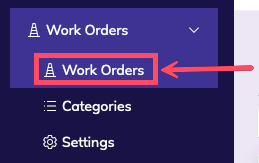
- Open Work Orders.
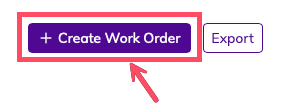
- Click Create Work Order.
- Fill out all required fields, starting with the Title and Description.
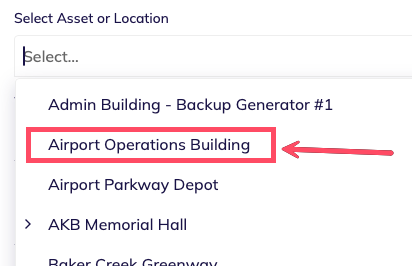
- Select the applicable asset or location.
- Complete the remaining required fields.
- Click Create Work Order.

Choosing the correct work-order group is important because the group determines the Job form and the type of association available.
For an asset work order, use Asset Search to find the record. Asset Search can filter by:
- Class
- Category
- Module
- Location
- ID
- Name
Search options for facilities and other location types differ from Asset Search.
When asset results have similar names, use the displayed ID and other record information to identify the correct asset.
Entering an asset or location name in another field, such as the work description, does not populate a configured association field. Select the record through the applicable field or search window.
Create a Work Order from an Inspection
A work order can be created from a saved inspection when work orders are enabled for that module and an applicable work-order group is available. For more information, see our article on Creating Follow-Up Work from an Inspection.
Correct an Association
Association editing depends on the work-order type, Job form, permissions, and whether the work order originated from an inspection.
For a standalone work order:
- Open the work order.
- Click Edit.
- Find the applicable association field.
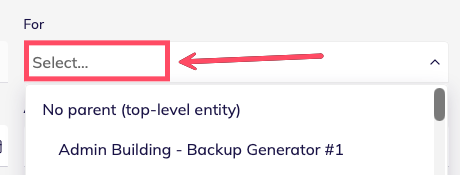
- Select the correct asset or location.
- Click Save.
Inspection-linked associations are generally locked during later editing. If the association field is disabled, it cannot be changed through the normal editing workflow.
Completed and Cancelled statuses do not, by themselves, limit association editing to System Administrators. Editing availability is controlled by the user’s role, work-order-group permissions, form configuration, and the work order’s source.
Changing a work order’s association does not move or modify its originating inspection.
Why the Association Matters
The saved association can determine:
- The asset or location displayed in the Work Orders summary.
- The association shown in work-order details and reports.
- The association included in applicable exports and PDFs.
- How the work order is grouped with records from the relevant module.
Access to work orders is controlled by Work Orders roles, work-order-group permissions, city ownership, and form availability. It is not granted solely by the selected asset or location.
The Work Orders summary defaults to Open statuses. Completed and Cancelled work orders are excluded from the Open filter and can be viewed by selecting All or an applicable status filter.
The Associated Work Orders window for an inspection uses the source-inspection link. It is not simply a list of all work orders associated with the same asset or location.
Check Before Creating
Confirm that:
- You selected the correct work-order group.
- The Job form contains the appropriate association type.
- You selected the intended asset or location.
- The displayed asset ID and other identifying information match the intended record.
- The association and work description refer to the same work location.
- An existing work order does not already cover the work.
- An inspection-created work order remains associated with the inspected record unless there is a specific reason to change it.
- Eligible inspection faults appear in the work order when creating it from Associated Work Orders.
Was this article helpful?
That’s Great!
Thank you for your feedback
Sorry! We couldn't be helpful
Thank you for your feedback
Feedback sent
We appreciate your effort and will try to fix the article