Turn an inspection finding into a work order so your team can track the issue through repair and verification. For more information about inspections, see our article Completing and Reviewing an Inspection.
Before You Start
Make sure:
- The inspection was submitted.
- The finding is linked to the correct asset.
- You can create work orders.
- No open work order already covers the issue.
Create the Work Order
- Go to Asset Management.
- Find and open the inspected asset.
- Click the Inspections tab.

- Open the completed inspection.
- Select the finding or failed response.
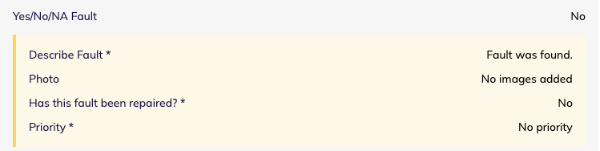
- Click Create Work Order.

- Review the details copied from the inspection and check the box.
- Click Next.
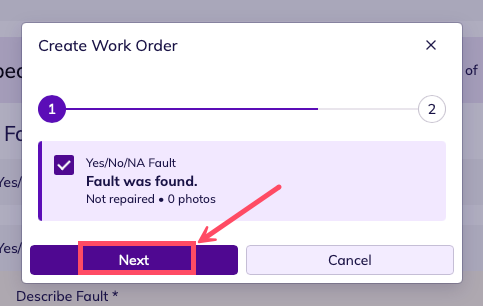
- Fill out all relevant information, then click Create Work Order.
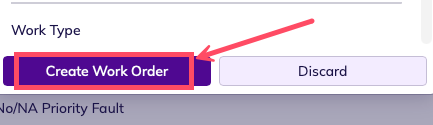
The work order is now linked to the asset and inspection finding.
Add Clear Work Details
Summary
Briefly describe the required correction, e.g. Repair drive-end seal leak.
Description
Include:
- What the inspector found
- The affected component
- The exact location
- Relevant measurements
- Any immediate action taken
- The expected result
Repair the active oil leak at the drive-end seal. Oil was collecting beneath the coupling guard during the monthly inspection.
Priority
Choose a priority based on safety, environmental impact, service disruption, failure risk, and how quickly the condition is getting worse.
Assignment and Dates
Select the responsible team or worker, then add the scheduled or target completion dates.
Attachments
Add inspection photos or documents if they were not copied automatically.
Check for Existing Work
Before saving:
- Open the asset’s Work orders tab.
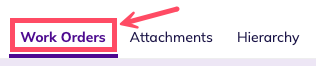
- Review open and in-progress work.
- Look for the same component or problem.
- Link or reference the finding if matching work already exists.
If the condition has worsened, update the existing work order’s priority or description where permitted.
- Inspect or test the repair if verification is required.
- Return to the original finding and mark it resolved.
Closing a work order will not clear the inspection fault. The asset will need to be re-inspected and any faults cleared through this second inspection.
Troubleshooting
- Create-work option is missing: Confirm that the inspection was submitted, the response created a finding, and you have permission. Also check for an automatically created work order.
- Wrong asset is linked: Edit the work order, select the correct asset, and verify its ID or tag.
- Finding remains open: Return to the inspection, complete any required verification, and close the finding separately.
- Duplicate work orders exist: Keep the correct record, transfer any needed information, and cancel the duplicate according to your process.
Was this article helpful?
That’s Great!
Thank you for your feedback
Sorry! We couldn't be helpful
Thank you for your feedback
Feedback sent
We appreciate your effort and will try to fix the article