Inspections record an asset’s condition and flag problems that need attention. Once submitted, they become part of the asset’s history.
Your available options may depend on your permissions.
Before You Start
Make sure:
- You selected the correct asset and inspection.
- The asset ID or tag matches the equipment.
- You understand what the inspection covers.
- You have the tools needed to complete it.
If several inspections are available, check the name and purpose before choosing one.
Start the Inspection
- Go to Asset Management.
- Select an asset.
- Navigate to the Inspections tab.

- Find the desired inspection.
- Click Start Inspection.
Complete the Questions
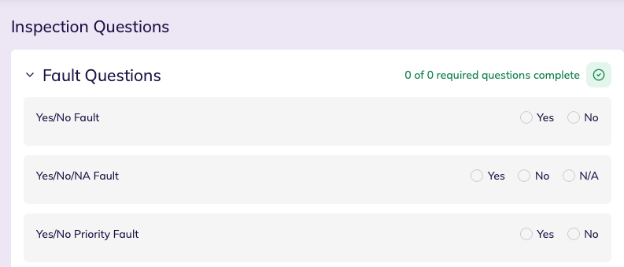
Work through the form in order and record what you observe.
- Text: Add clear, factual details.
- Measurements: Use the displayed unit and double-check unusual values.
- Yes, No, or Not applicable: Use Not applicable only when the question truly does not apply.
- Lists: Choose the option that best matches the condition.
- Photos: Clearly show the issue and where it is located.
- Signatures: Review your responses before signing.
Avoid vague notes such as “needs attention.”
Record a Fault
When you find a problem:
- Select the correct fault or condition.
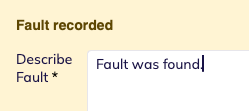
- Add clear notes.
- Choose a priority, if required.
- Attach a helpful photo.
- Record any immediate action taken.
Do not select an acceptable result just to complete the form.
Submit the Inspection
Before submitting:
- Review every response.
- Confirm measurements and dates.
- Check fault notes and priorities.
- Add required photos.
- Review any signatures.
- Click Submit Inspection.
- Leave any comments (optional).
- Confirm the calculated due date.
- Click Submit Inspection.
If submission is unavailable, check for missing required responses, attachments, values, signatures, or fault priorities.
Review the Results
- Open the asset.
- Click the Inspections tab.

- Scroll down to Completed Inspections.
- Click the submitted inspection.
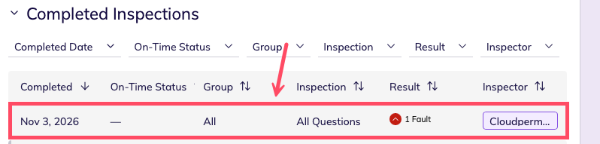
Review its responses, measurements, ratings, faults, notes, photos, and signatures.
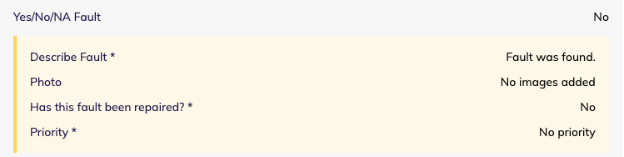
Check that:
- Required questions were completed.
- Notes and photos support the responses.
- Measurements look reasonable.
- Problems were recorded as faults.
- Priorities match the severity.
- Follow-up work was created when needed.
Compare earlier results to spot recurring or worsening issues.
Troubleshooting
- Cannot submit: Check required responses, attachments, values, priorities, signatures, and your connection.
- Inspection is unavailable: Confirm that it is active and assigned to the asset.
- Submitted inspection is missing: Clear filters, check the date range, and confirm it was submitted rather than saved as a draft.
- Fault has no work order: Create or link follow-up work manually.
Was this article helpful?
That’s Great!
Thank you for your feedback
Sorry! We couldn't be helpful
Thank you for your feedback
Feedback sent
We appreciate your effort and will try to fix the article