Assigning an inspection to an asset makes the right inspection form available to your team. You can assign one inspection or several, depending on what the asset needs.
Your options may vary based on your permissions and Public Works Asset Management configuration.
Before You Start
Make sure:
- The asset already exists.
- The inspection is active or published.
- The inspection is appropriate for the asset.
- You have permission to manage inspection assignments.
An assignment connects an inspection form to an asset. It is not a completed inspection record.
Assign an Inspection
- Go to Asset Management.
- Search for the asset by name, ID, or tag.
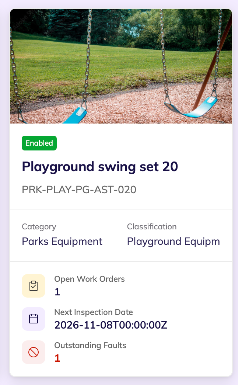
- Open the asset.
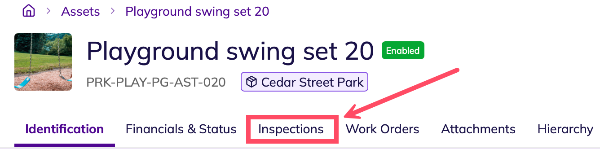
- Select the Inspections tab.
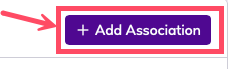
- Select Add Association.
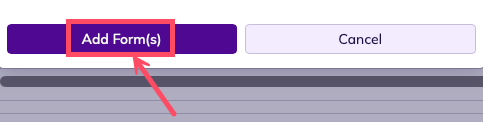
- Find and select the inspection, then click Add Form(s).
The inspection now appears on the asset’s inspection list.
Assign More Than One Inspection
An asset can have several inspections. For example, a pump might need:
- A daily operational check
- A monthly maintenance inspection
- An annual safety inspection
Select all applicable inspections at once if the assignment window allows it. Otherwise, repeat the assignment steps for each inspection.
Use separate inspections when they serve different purposes or have different completion requirements.
Understand Inherited Inspections
Inspections associated with an asset’s category or classification are not added automatically. Instead, they appear at the bottom of the page as suggested forms that you can choose to add.
For example, a pump might show:
- A general inspection suggested by the Mechanical category
- A pump-specific inspection suggested by the Pump classification
- An inspection already assigned directly to that pump
Review the suggested forms and the asset’s existing inspections before adding one to avoid duplicates.
Change an Assignment
- Open the asset.
- Select Inspections.
- Find the assigned inspection.
- Click Edit.
- Update the available settings.
- Save your changes.
Updating an assignment changes how the inspection applies to this asset. Editing the inspection form itself may affect every asset using it.
Remove an Assignment
- Open the asset’s Inspections tab.
- Find the inspection you want to remove.
- Select the X at the end of the inspection’s row.
- Select Save to complete the removal.
Removing a direct assignment does not remove an inherited inspection. To remove an inherited assignment, update the asset’s category or classification configuration.
Before removing an inspection, check for pending work, compliance requirements, and completed history. Keep completed inspection records for future reference.
Troubleshooting
The inspection is unavailable
Check that it is active, appropriate for the asset, and not already assigned. You may also need additional permissions.
The inspection appears twice
One copy may be directly assigned while another is inherited. Remove the unnecessary direct assignment.
An inspector cannot see it
Check the assignment status, responsible department, and the inspector’s permissions. Also confirm that the inspection is active.
The wrong questions appear
Make sure you assigned the correct inspection and that its current published version contains the expected questions.
Was this article helpful?
That’s Great!
Thank you for your feedback
Sorry! We couldn't be helpful
Thank you for your feedback
Feedback sent
We appreciate your effort and will try to fix the article