Set a work order’s status to Completed when the work and required documentation are finished. If the original work requires further attention, change it back to an open-work status such as In Progress.
Public Works Asset Management does not use separate Closed or Reopened statuses. The applicable completion status is Completed.
Before You Complete a Work Order
Confirm that:
- The requested work is finished.
- The Job form accurately describes the completed work.
- Questions required on completion have been answered.
- Labor, materials, costs, or completion dates are entered when required by the Job form.
- Required pictures or supporting files are attached.
- Applicable testing or verification is complete.
- The asset or location is safe and operational, when applicable.
Requirements depend on the configured Job form. Labor, materials, costs, pictures, and comments are not mandatory for every work order.
Task progress and work-order status are separate. Setting a task to 100 percent does not automatically change the work order to Completed.
Complete a Work Order from the List
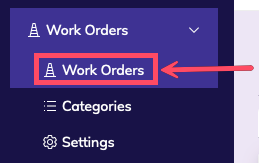
- Open Work Orders.
- Find the work order.
- In the Status column, select Completed.
- Select Save.
Changing the status in the row does not save it immediately. You must select Save.
If the Job form contains unanswered questions configured as mandatory on completion, Public Works Asset Management displays an error and does not complete the work order.
After the list refreshes, the work order normally disappears from the default Open results. The Open filter excludes Completed and Cancelled work orders.
Complete a Work Order from the Job Form
Use the Job form when you need to review or update the work details before completing the work order.
- Open Work Orders.
- Select View for the work order, or double-click its row.
- Open the Job form.
- Select Edit.
- Update the work details and required completion fields.
- Select Save.
- In Save Work Order, select Completed in Status.
- Add a comment if appropriate.
- Select Save.
The Comments field in the Save Work Order window is optional. The Job form may contain other questions that are mandatory when the status is Completed.
Write Useful Completion Information
Use the configured Job-form fields and comments to record:
- What work was completed.
- Which component was repaired or replaced.
- Test results or measurements.
- Whether the asset returned to service.
- Any remaining recommendations.
For example:
Replaced the drive-end seal and cleaned the area. Operated the pump for 20 minutes with no further leakage. Pump returned to service.
Avoid comments such as “done” or “fixed” when more detail would help future users understand the work.
Completion Dates
A Job form may include a Work Completed date or another completion-date question. Update it when required.
Changing the status to Completed does not universally populate that field. Review the date before saving rather than assuming Public Works Asset Management has set it automatically.
Verify Inspection Follow-Up
If the work order originated from an inspection fault:
- Confirm that the repair addresses the original fault.
- Review the work details and attachments.
- Complete any required testing or follow-up inspection.
- Update the inspection fault’s repair state when required by your process.
- Confirm that both records accurately reflect the outcome.
Setting a work order to Completed does not automatically mark the originating inspection fault as repaired. The work-order link and the fault’s repaired status are maintained separately.
Find a Completed Work Order
The Work Orders list defaults to the Open filter. Open excludes Completed and Cancelled work orders.
To find a completed work order:
- Open the applicable work-order group.
- Change the status filter to Completed or All.
- Check the date range and other filters if the work order does not appear.
- Find and open the work order.
Completed work orders are filtered from the Open list. They are not moved to a separate archive.
Reopen a Work Order
Public Works Asset Management does not provide a standard Reopen button or a status named Open. Reopen a work order by changing its status from Completed to an appropriate open-work status.
From the Work Orders list:
- Change the status filter to Completed or All.
- Find the work order.
- Change its Status to an open-work status such as In Progress.
- Select Save.
From the Job form:
- Open the completed work order.
- Select Edit.
- Select Save.
- In Save Work Order, change Status to an appropriate open-work status.
- Add a comment if appropriate.
- Select Save.
Your normal Work Orders role, work-order-group access, and editing permissions determine whether you can change the status. There is no separate reopen-specific permission.
After reopening, the work order appears under the Open filter, subject to the other active filters.
What Reopening Does
Reopening keeps the same work-order record and number. It changes the status but does not automatically:
- Clear the Work Completed date.
- Remove previous completion information.
- Delete labor, material, cost, or attachment records.
- Reset task progress.
- Change the assignment.
- Change the priority or due date.
- Mark the originating inspection fault as unresolved.
- Remove the link to the originating inspection.
Review and update these items individually when the correction requires it.
Document the Correction
Public Works Asset Management does not require a reopening reason. However, add a useful comment or Job-form note when possible.
Include:
- Why the work order was reopened.
- What was incomplete or incorrect.
- What still needs to be done.
- Who is responsible.
- Any priority or date changes.
For example:
Reopened after post-repair testing found continued leakage. Additional diagnosis is required.
Keep the original completion information. Add the correction rather than replacing useful details about the earlier work.
Reopen or Create New Work?
Reopen the existing work order when the correction remains within the original scope, such as when:
- The repair was incomplete.
- The original issue is still present.
- Verification failed.
- The work order was completed by mistake.
- Completion information needs correction.
Create a new work order when:
- A different problem was found.
- Another asset or location is affected.
- The original repair succeeded and a later failure occurred.
- The new work needs separate tracking, costs, dates, or responsibility.
Reference the previous work order in an appropriate Job-form field or comment when the records are related.
Complete It Again
After completing the correction:
- Update the work performed.
- Record any required labor, materials, or costs.
- Add required pictures or supporting files.
- Complete applicable testing.
- Update the configured completion date when necessary.
- Change Status to Completed.
- Select Save.
Was this article helpful?
That’s Great!
Thank you for your feedback
Sorry! We couldn't be helpful
Thank you for your feedback
Feedback sent
We appreciate your effort and will try to fix the article