Work Order Settings control work order numbering and the due date warning indicator. This page does not provide options for configuring a Base Work Order Template, forms, fields, layouts, defaults, or specialized templates.
You need the appropriate Work Orders permissions to change these settings.
Open Work Order Settings
- Open the Work Orders module.
- Select Settings.
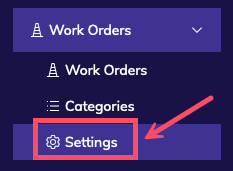
The page provides two configuration areas:
- Work Order Number Generator
- Due Date Warning Indicator
Configure the Work Order Number Generator
Use the Work Order Number Generator to control how numbers are assigned to new work orders.
- Click Edit.
- Change the available values as required.

- Click Save.
Before changing the generator, confirm that the new configuration will not duplicate an existing work order number.
Configure the Due Date Warning Indicator
Use the Due Date Warning Indicator to control when work orders are visually identified as approaching or exceeding their due dates.
- Click Edit to change the warning threshold.
- Update the available value as required.
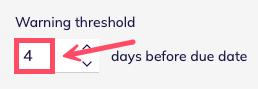
- Click Save.
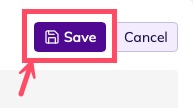
Choose a setting that gives staff enough time to respond before work becomes overdue.
Test the Settings
After saving:
- Create a test work order and confirm that its number follows the configured sequence.
- Review work orders with approaching and overdue due dates.
- Confirm that the due date warning indicator appears as expected.
Changes apply when they are saved. There is no separate publishing step.
Work order templates, field requirements, layouts, and defaults cannot be configured from Work Order Settings.
Was this article helpful?
That’s Great!
Thank you for your feedback
Sorry! We couldn't be helpful
Thank you for your feedback
Feedback sent
We appreciate your effort and will try to fix the article