Assign a work order to the person responsible for completing it. If responsibility changes, update Assign To so the correct user can find and manage the work.
Public Works Asset Management uses a single-person assignment rather than separate Department, Team, or Assignment Group fields. Work Order Group identifies the form and controls access; it is not a team assignment.
Assignable users are generally active users in your organization who have access to the Work Reporter module.
Assign a Work Order
Assignment may appear as Assign To or as a configurable User Combo field on the Job form.
To assign a work order from its Job form:
- Open Work Orders.
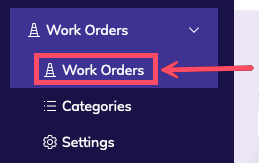
- Create a work order or open an existing one.
- Select Create or Edit, as applicable.
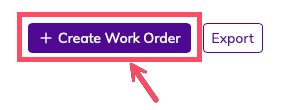
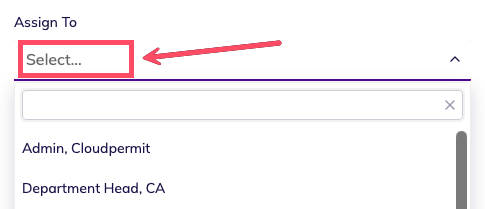
- Find the configured assignment field.
- Search for and select the responsible person.
- Complete or review the remaining Job-form fields.
- Select Create or Save.

A Job form can contain more than one User Combo question, but only the first configured User Combo controls the work order’s Assign To value.
Some Job forms require an assignee. Others allow the work order to remain unassigned.
Leave Work Unassigned
Public Works Asset Management supports unassigned work orders, although a configured Job form can require an assignment.
Leaving a work order unassigned may be appropriate when:
- Responsibility has not been determined.
- A dispatcher or manager will assign it later.
- The work is waiting for review or scheduling.
The ability to clear an existing assignment depends on the screen being used. The Scheduler and configurable User Combo fields support unassigned values, but the Work Order Management editor may not provide a blank selection.
The Scheduler can filter work by All, Unassigned, or selected users.
Assign Work to a Person
Select a person when that user is responsible for the work order.
Before assigning, confirm that the person:
- Has access to the Work Reporter module.
- Has the appropriate skills or authorization.
- Can complete the work within the required timeframe.
- Can access any related asset, location, or inspection information.
Public Works Asset Management does not use a standard team-membership check when assigning work. The available users are not filtered by a selected department or team.
Reassign a Work Order
To reassign through Work Order Management:
- Open Work Orders.
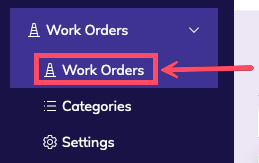
- Find the work order.
- Select Edit.
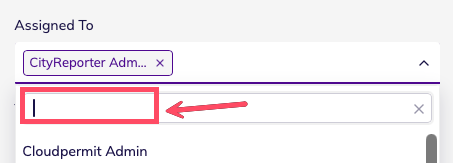
- Select the new person in Assign To.
- Review the status.
- Select Save.

You can also reassign through the work order’s Job form when its assignment field is editable.
Reassignment changes the assigned person only. It does not automatically change the work order’s status, priority, requested date, scheduled date, due date, or other Job-form values.
Document the Handoff
Public Works Asset Management does not require a new reassignment note. However, when the Job form provides an appropriate comments or notes field, document useful handoff information such as:
- Why the work was reassigned.
- What is already complete.
- What remains to be done.
- Any safety, access, or timing concerns.
- Relevant approvals or decisions.
For example:
Reassigned to Pat Lee after the inspection confirmed a fault in the motor control panel. Mechanical isolation is complete. Electrical testing is still required.
A comment saved in assignment history is not necessarily a newly entered reassignment explanation. Depending on the editing workflow, Public Works Asset Management may use an existing work-order comment or leave the history comment blank.
Review Status, Priority, and Dates
Before saving, review any applicable fields on the Job form.
- Keep the current status if the work has not changed stages.
- Change the status separately when the work’s actual state has changed.
- Update priority only when the urgency or risk has changed.
- Update requested, scheduled, or due dates only when needed and authorized.
- Do not assume reassignment automatically reschedules or reopens the work order.
Assignment and status are maintained separately. Changing both during the same edit can trigger separate history and notification processes.
Find Assigned Work
The Work Orders summary and Work Order Management provide an Assign To filter. Select one or more users to show work assigned to those people.
Clearing the Assign To filter shows work without restricting results to a particular person. It does not mean “show unassigned only.”
Use the Scheduler’s Unassigned filter when you specifically need to find work without an assignee.
Public Works Asset Management does not provide a standard team-owned assignment queue. Work Order Groups organize forms and access, while Assign To identifies the responsible person.
Confirm the Assignment
After saving:
- Confirm that Assign To displays the correct person.
- Use the Assign To filter to confirm that the work order appears for that user.
- In Work Order Management, select View Assigned To History if you need to review assignment records.
The Work Order Assigned To History window can display:
- Assigned To
- Changed Date
- Changed By
- Comments
History records the assignee for each saved entry. It does not store an explicit previous-assignee field, and not every cleared or unresolved assignment is guaranteed to create a history entry.
Assignment Notifications
When assignment notifications are configured, Public Works Asset Management may email or send a push notification to the new assignee.
Notification behavior depends on:
- Organization configuration.
- The user’s notification settings.
- Whether the user has a registered device.
- The work order’s status.
- Successful delivery by the email or push service.
Completed and Cancelled work orders do not generate assignment push notifications. The previous assignee is not automatically notified by the standard reassignment process.
A successful save confirms that the assignment was stored. It does not confirm that a notification was delivered.
Handle Completed or Cancelled Work
Changing an assignment does not automatically reopen a Completed or Cancelled work order. If your process requires the work order to be reopened, change its status separately.
Completed and Cancelled work orders are not universally locked against reassignment. Editing depends on the user’s role, work-order-group permissions, and the screen being used.
Do not reassign a completed work order solely to request unrelated work. If the new work has a different purpose or scope, create a new work order and reference the completed one where appropriate.
Was this article helpful?
That’s Great!
Thank you for your feedback
Sorry! We couldn't be helpful
Thank you for your feedback
Feedback sent
We appreciate your effort and will try to fix the article