Custom attributes let you track details that are not covered by standard asset fields. You can add them to one asset, a whole category, or a specific classification.
Your options may depend on your permissions.
Understand Attributes
An attribute definition describes what you want to collect. It can include:
- Name and description
- Data type
- Unit of measure
- Allowed options
- Default value
- Required or optional status
Each asset then stores its own value. For example, you can define Operating Pressure as a number measured in kilopascals, then enter a different value for each pump.
Choose the Right Level
Use the narrowest level that covers all assets needing the attribute.
Level | Use it when | Example |
Category | It applies to a broad asset group | Manufacturer |
Classification | It applies to one asset type | Pump flow rate |
If you are adding the same attribute to several assets, define it at the category or classification level instead.
Plan the Attribute
Before creating it, check:
- Whether a standard field already exists
- Which assets need the information
- Which level is the best fit
- Which data type to use
- Whether a unit or instructions are needed
- Whether every affected asset must have a value
- Whether existing assets will need updating
Use a stable, descriptive name rather than one based on a temporary process.
Create a Shared Attribute
To add an attribute at the category or classification level:
- Open the asset settings or configuration area.
- Click Categories.
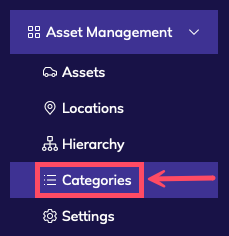
- Select the applicable category or classification.
- Open its attributes or custom fields via the Custom attributes tab on the Category or Classification details page.

- Click Add.
- Enter an attribute label.
- Click Add.
- Configure its type, options, unit, default, and requirements.
- Save your changes.
The attribute becomes available to assets assigned to that category or classification.
For example, a Pump classification might include flow rate, operating pressure, and impeller diameter. A Motor classification might use voltage, power rating, and rated speed.
Choose a Data Type
Select the most structured type that fits the information:
- Text for short descriptions or identifiers
- Number for quantities and measurements
- Date for installation or service dates
- Yes/No for simple conditions
- Single-select for one approved option
- Multi-select for several approved options
- Measurement for values with units
Avoid using text when a number, date, or selection list would provide cleaner data.
Configure Selection Options
For a selection list:
- Add each allowed option.
- Use clear, distinct values.
- Arrange them logically.
- Add Unknown or Not applicable only when those choices have a defined meaning.
- Save and test the list.
Avoid changing an option’s meaning after assets have started using it. Add a new option instead.
Make an Attribute Required
Make an attribute required only when every affected asset must have a value.
Before enabling Required:
- Review affected assets.
- Confirm that users can provide the information.
- Fill in missing values where possible.
- Test editing an existing asset.
If the field applies to only some assets, move it to a narrower classification or leave it optional.
Update or Retire an Attribute
Shared attribute changes can affect many assets. Before editing or retiring one:
- Review the assets and existing values using it.
- Check reporting and integration dependencies.
- Keep the attribute’s meaning and data type consistent.
- Preserve information needed for reporting or compliance.
- Test the change on several assets.
Note: You cannot disable an unwanted custom attribute. You can only delete them.
Was this article helpful?
That’s Great!
Thank you for your feedback
Sorry! We couldn't be helpful
Thank you for your feedback
Feedback sent
We appreciate your effort and will try to fix the article